
E5-to-E7 SharePoint Cleanup Before Copilot

Clean up SharePoint access and content lifecycle rules before expanding Copilot licensing. I treat SharePoint Copilot readiness as an access approval gate: every sensitive repository needs an owner, an approved audience, and a documented retention decision.
For an organization comparing Microsoft 365 E5, E5 plus standalone Microsoft 365 Copilot, and Microsoft 365 E7, the upgrade does not repair inherited permissions. Start with the content employees can retrieve, then decide which licenses support the work.
Key Takeaways
- Copilot respects existing permissions, including permissions your organization should have removed.
- Permission repair, version trimming, and archival are separate changes with separate approvals.
- Expand the pilot only after owners approve access, lifecycle decisions are documented, and representative retrieval tests pass.
Set the E5-to-E7 Licensing Boundary
Separate entitlement from readiness
I use E5 plus standalone Microsoft 365 Copilot as the comparison baseline for an E7 decision. E5 alone doesn't include the full Microsoft 365 Copilot add-on. Choose Copilot licenses after the content-readiness assessment.
Microsoft's Copilot service description identifies qualifying base subscriptions. "Microsoft E3 or E5" means an eligible Microsoft 365 E3 or E5 base subscription. Neither includes standalone Copilot. Business Standard and Business Premium also qualify. Users need Microsoft Entra ID accounts and OneDrive accounts to save and share files.
Microsoft's requirements documentation, updated October 29, 2026, supports classic and new Outlook; new Outlook isn't universally required. Use supported Teams clients, including desktop or web, and enable Loop for Loop experiences.
Data Access Governance reports require SharePoint Advanced Management (SAM). At least one Microsoft 365 Copilot license enables included SAM capabilities for SharePoint administrators, as Microsoft's SAM entitlement guidance explains.
Separate licensing from operating costs
Microsoft list prices are $3/user/month for standalone SAM and $99/user/month for Microsoft 365 E7. The $99/user/month price covers licensing only; Azure compute, model, and message consumption are billed separately.
Microsoft's Archive FAQ, updated October 31, 2026, lists archived storage at $0.05/GB/month versus $0.20/GB/month for active storage overage. Included tenant capacity still affects the bill.
Agent 365 is generally available (GA) and provides a governance and control plane for agent oversight. It isn't an agent runtime. I keep agent execution and connector remediation outside a SharePoint-only cleanup unless explicitly scoped.
Run the SharePoint Copilot Readiness Audit
CoreView's 2026 State of Microsoft 365 Security report found that 66% of organizations delayed or cancelled Copilot deployment over data-exposure concerns. That concern needs an assigned remediation decision.
I start with this yes/no audit. It's an evidence-based Copilot readiness checkpoint for content access, not a general AI readiness assessment. A yes requires evidence, not an owner's recollection.
| Readiness area | Answer yes only when |
|---|---|
| Ownership | Accountable business owners are identified for sensitive data and pilot-accessible sites. |
| Sharing | Broad links, guest access, and Teams memberships have approved business purposes. |
| Permissions | High-risk unique permissions have been reviewed and tested. |
| Lifecycle | Obsolete content has approved retention, deletion, or archival decisions. |
| Versions | Library settings and existing-version cleanup have separate approved plans. |
| Offboarding | Departed-user OneDrive accounts have documented ownership and disposition. |
Six yes answers permit pilot preparation. Any no becomes assigned work. Unapproved sensitive access blocks expansion regardless of the score.
Microsoft's November 11, 2026 Copilot overview describes how large language models, Microsoft Graph content, and Microsoft 365 applications work together. Emails, chats, and documents remain subject to user permissions. Microsoft's enterprise data protection guidance states that prompts, responses, and Graph-accessed data are not used to train foundation models.
Repair Broad Access and Unique Permissions
Start with sensitive content and broad sharing
Microsoft's secure deployment blueprint prioritizes Everyone except external users, Anyone with the link, and People in your organization sharing. Review these against personnel records, customer commitments, financial information, sensitive data, and intellectual property first. Treat broad links to exposed repositories as oversharing, and ask site owners to confirm whether each Anyone with the link setting is still needed.
In the SharePoint admin center, use Data Access Governance reports to identify exposure, then send findings to named site owners. Combine current permission snapshots with sharing activity; an old exposure can have no recent activity. Review guest accounts and Microsoft Teams guests alongside Microsoft 365 group membership and site permissions.
An Office 365 migration can preserve obsolete access perfectly. For the repair procedure, use our SharePoint oversharing remediation guidance. Remove access through approved batches, then test both legitimate access and expected denials.
Inspect unique permissions explicitly
A copy-link action that grants access, an organizational sharing link, or a workflow can create unique item permissions. Removing or expiring the link does not automatically restore inheritance.
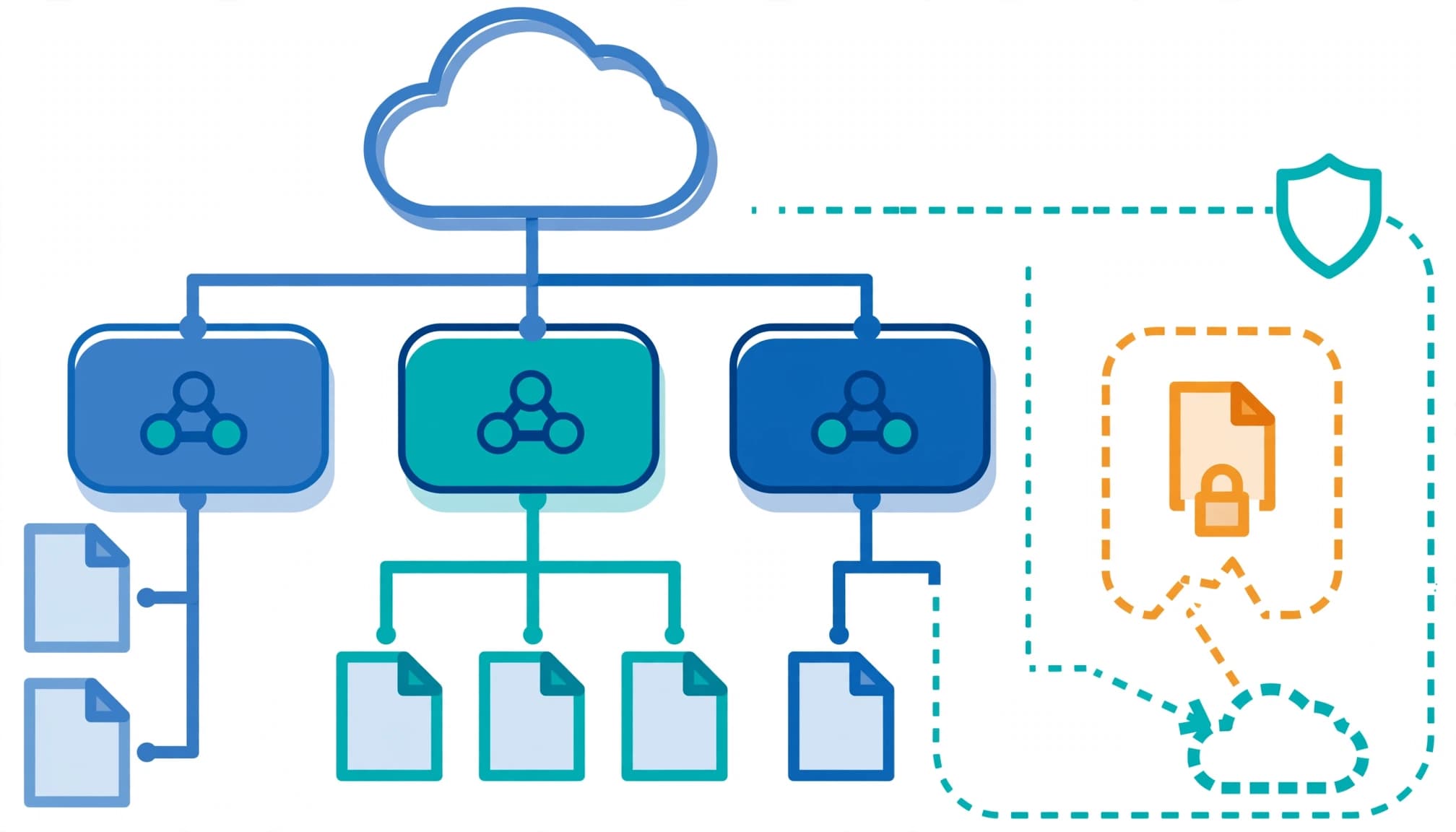
There is no complete native admin-center inventory of every instance of broken permission inheritance. I scope a scripted inventory across sites, libraries, folders, and items, recording unique-permission flags and role assignments. Copying a link without granting access does not itself prove inheritance changed.
Restore inheritance only after the owner approves the parent audience. Otherwise, cleanup can broaden access instead of reducing it.
Separate Version Cleanup From Content Retirement
Set limits, then schedule trimming
The SharePoint admin center default is Manually with 500 major versions. Microsoft recommends Automatically; its organization version-limit guidance explains how defaults apply to new libraries.
Version-history limits govern document libraries and new versions. Changing the setting doesn't remove the existing backlog. Existing versions need a separate trim job, with retention policies and legal holds accounted for before deletion.
A 25 MB presentation with 200 retained, full-size versions plus the current file exceeds 5 GB. Actual consumption depends on version sizes. Copilot's effect on version growth is indirect; versioning and editing behavior create the storage.
Storage governance requires a version-storage report, approved trim criteria, and a documented recovery requirement before deletion. Record what will be permanently removed.
Retire obsolete files and inactive sites
Files named v2_final and final_FOR_REAL_THIS_TIME are separate documents, not entries in one version history. Copilot can retrieve them alongside the approved document. ROT content means redundant, obsolete, or trivial content, and requires owner-approved disposition. Assign the content owner to make the content management decision: identify the authoritative source and approve the disposition of duplicates.
Review stale content in inactive sites before retrieval. A team archived only through the Teams client remains discoverable to authorized users and Copilot. Moving its site into Microsoft 365 Archive removes that archived content from Copilot's active retrieval scope.
Use Restricted Content Discovery as a discovery restriction while remediation proceeds. It doesn't revoke access or make deletion decisions defensible. Records owners still need to approve preservation and disposal, as our E7 records management assessment describes.
Write an Offboarding Decision for Each Account
Separate account deletion, license removal, and sign-in blocking. They trigger different processes, and confusing them leaves retained business information without an accountable owner.
Deleting a Microsoft Entra ID account starts the deleted-user OneDrive lifecycle. The Entra deleted-user recovery period is 30 days. The configurable OneDrive retention period is separate, ranging from 30 to 3,650 days; applicable retention policies and holds can preserve content longer. OneDrive subsequently enters its site-collection recycle-bin process.
Removing the license follows another path. Microsoft's unlicensed OneDrive documentation, updated November 10, 2026, specifies read-only status after 60 unlicensed days and archival after 93 days. Disabling an account while leaving its license assigned does not automatically initiate either cleanup process.
I require the manager to identify the records owner before offboarding closes. Transfer active business records into an owned SharePoint location, document preservation requirements, and assign the remaining disposition decision. A disabled account is not an offboarding policy.
Remediate in Rings and Deliver Operating Evidence
Budget the work around approval gates
For a mid-size tenant, my planning allowance is ten working days for inventory, prioritized remediation, and trial preparation. I allocate days one and two to reports and ownership, days three through five to high-risk access, and days six through ten to lifecycle decisions, approved trimming, and access tests. Report queues, holds, and owner approvals extend that schedule.
Then run a small, cross-department pilot for two business weeks before broader licensing. Include IT first. Test useful workflows, collect source citations, and record incorrect or obsolete retrievals without copying sensitive content into the assessment report.
The AI acceptable-use policy must define handling rules for company, client, and sensitive information. Training should demonstrate approved work using approved sources. Role-based training should teach site owners to validate sources and report retrieval issues. Follow-up training should cover handling company, client, and sensitive information. Keep preview features outside production acceptance criteria.
Define the handover and the boundary
The client should receive a site inventory, exposure register, approved change log, lifecycle decisions, unresolved exceptions, and a trial go/no-go record. These records support data governance by documenting exposed content, approved changes, and unresolved issues. Each exception needs an owner, a reason, and an expiration date.
I separate endpoint security and device hardening findings from content permission repairs. Both belong in cloud management, but they require different owners and evidence.
Our Microsoft 365 migration and licensing services can connect tenant readiness with the E5-to-E7 decision. Outside help isn't worth buying when your team already has complete inventories, responsive owners, tested procedures, and time to execute. Buy help for a documented gap.
Frequently Asked Questions
Does Copilot show everything a user can access?
Existing authorization defines the access boundary. It does not guarantee that every accessible file appears in every response. Retrieval, indexing, prompt context, and response generation affect what appears. A clean demonstration therefore does not prove the underlying permissions are safe.
Is archiving enough to approve rollout?
No. Archive is appropriate for inactive content that must be preserved without remaining active. Sensitive working libraries still need permission repair, approved ownership, and representative access tests. Test the remaining active content before expanding the pilot.
Approve the Content Before Expanding Licenses
The governing standard is approved access with accountable ownership. E7 can change the available controls, but it cannot decide which employee should read a contract or which draft should remain authoritative.
Complete the necessary work, record the exceptions, and expand only after the evidence supports it.
Book a free 30-minute call to scope the readiness assessment or licensing review.