
Entra PIM Activation Controls for E7 IT Operators
Review Entra PIM activation controls after confirming the licensing baseline in section 1. Operators need working access for an approved task, a defined expiration, and an approval path that won't stall during an outage.
I start with assignments, activation policies, and the downstream services administrators use. The licensing baseline does not configure those controls, and an approved request does not prove Exchange or SharePoint is ready. Test the complete activation sequence against an approved task.
Establish the Licensing and Administrative Baseline
For E7 planning, record whether your starting point is Microsoft 365 E3, Microsoft 365 E5, or E5 plus standalone Microsoft 365 Copilot. E3 includes Microsoft Entra ID P1; E5 includes Microsoft Entra ID P2. Copilot doesn't change the PIM activation procedure.
Microsoft's PIM licensing requirements identify Microsoft Entra ID P2 or Microsoft Entra ID Governance as the entitlement, not a separate Premium P2 license SKU. The tenant needs the entitlement, and covered users need licenses, including eligible administrators and activation approvers. One licensed administrator doesn't cover the team.
For Microsoft Entra role configuration, use Privileged Role Administrator or Global Administrator. I prefer Privileged Role Administrator because it follows least privilege, and configuring privileged access doesn't require unrelated tenant-wide authority. Azure resource role administration uses separate Azure RBAC permissions, such as Owner or User Access Administrator at the relevant scope.
PIM's activation controls are generally available capabilities. For E7 planning, separate existing PIM entitlement from additional governance requirements. The broader E3-to-E7 identity remediation plan should identify the configuration work that remains after licensing.
Set Entra PIM Activation Controls by Role
In the Microsoft Entra admin center, open ID Governance > Privileged Identity Management. For directory roles, select Microsoft Entra roles > Roles, choose the role, and open Role settings > Edit.
Limit duration and require useful evidence
Microsoft Entra role settings allow an activation duration of one to 24 hours. I'd start routine administration at one to four hours, then set a shorter maximum activation duration for higher-impact roles. A two-hour Exchange Administrator window is a reasonable starting policy; a full-day Global Administrator window needs a stronger reason. Apply the same scrutiny to the Privileged Role Administrator role.
Configure maximum activation duration, Require multifactor authentication on activation, Require justification on activation, and Require ticket information on activation where your process supports them. The MFA setting applies multi-factor authentication during activation, and MFA requirements should match the role's risk. Ticket fields capture information, but they don't prove an approved change exists; a useful business justification names the work instead of repeating "administration."
Make approval an operational dependency
Enable Require approval to activate for roles where independent authorization is necessary. Name primary and backup approvers who understand the role and cover operating hours, so the approval workflow stays available throughout the change window. If you select no approvers, users assigned the Global Administrator or Privileged Role Administrator role become the default approvers.
I'd reject a policy whose only approver is unavailable during the change window. Approval without coverage can interrupt operations or pressure teams to restore standing access.
Activate an Eligible Role and Confirm Access
Eligible assignments provide just-in-time access after activation. The eligibility period can have an expiry separate from the current activation window, which sets the activation duration. Active assignments can provide time-bound access or remain permanent, so treating every active assignment as permanent obscures an important review distinction.
Microsoft's role activation instructions establish the operator sequence:
- Sign in with the eligible administrative identity and select the correct tenant.
- Open ID Governance > Privileged Identity Management > My roles > Microsoft Entra roles.
- Find the eligible assignment and select Activate.
- Complete required authentication, choose the activation duration, and enter the business justification and ticket information.
- Submit the request, then inspect My requests for its status.
- Confirm the role appears under Active assignments, record its end time, and test the intended administrative action.
For Azure RBAC, use My roles > Azure resources instead. Microsoft's Azure resource activation procedure separates that workflow from directory roles. Exchange Administrator doesn't grant subscription access.
For a scheduled Exchange change, request activation ahead of the maintenance window. Record the request, approval, active state, successful workload access, and expiration times. Start the change only after the required action works.
Diagnose Pending, Missing, and Delayed Access
An approval is one checkpoint. Role provisioning, token refresh, and downstream service authorization still need to complete. I separate those stages before changing permissions.
Resolve missing activation and pending requests
If Activate is missing, check the signed-in identity, selected directory, eligibility dates, and resource scope. An active assignment doesn't need activation. An expired eligible assignment needs renewal, not another browser refresh.
For pending requests, check My requests, identify the configured approvers, and confirm someone received the notification. Check the request in PIM instead of relying on an email thread. An approver's message saying "approved" isn't the assignment state.
Separate provisioning delay from authorization failure
Confirm Approved under My requests and Active under Active assignments. Then refresh the administrative session and reopen the target admin center. Changes can take minutes to propagate. Allow 15 to 40 minutes or longer for Exchange and SharePoint as an operational estimate, not a service guarantee.
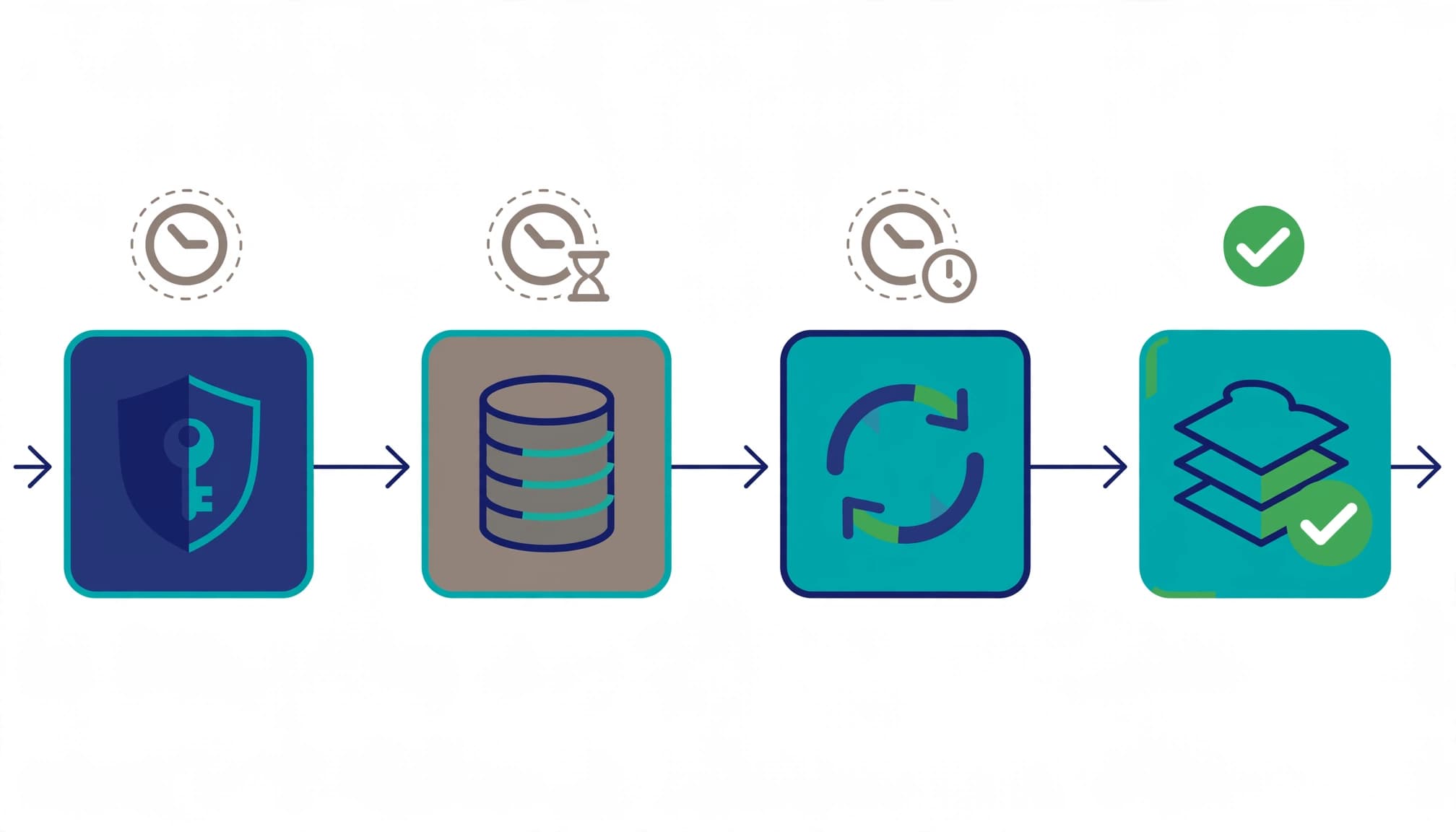
If access remains unavailable after that allowance, check the activated role, scope, Conditional Access result, and session identity. Repeated activation requests don't fix the wrong role.
Record the workload error and timestamps before escalating. Correlate them with the request state, active assignment, and audit logs to distinguish an approval issue from a provisioning delay or workload authorization failure.
Control Expiration, Groups, and Automation
Activation expiry and assignment expiry are different events. The first ends the current privileged session window; the second removes the underlying assignment or eligibility.
Keep renewals separate from activations
Microsoft's PIM role-settings documentation, updated March 26, 2025, lists expiration notifications 30 days, 7 days, and 1 day before assignment expiry. These messages concern the assignment, not the countdown for each short activation. Use the active assignment's displayed end time to track that window.
Users can request an extension before assignment expiry and renewal after expiry. Those requests enter the configured administrative approval process. Name the person responsible for reviewing continued need before the eligibility period ends.
Apply group policies without bypassing controls
Directory roles have one activation policy per role. PIM for Groups supports different activation rules for different groups, which helps separate operational populations with different requirements. Document each access path so group membership doesn't become an overlooked route to privilege.
Microsoft's PIM for Groups APIs support PowerShell automation through Microsoft Graph. Validate eligibility, submit the activation request, then poll its provisioning state with a timeout before running dependent work.
A successful request submission doesn't confirm provisioned membership. Automation must wait for membership to be provisioned and stop on denial, expiry, or timeout. Keep authentication and approval requirements in place.
Define the Review Deliverables and Recovery Path
I would scope the engagement around assignment exports, role policies, approver coverage, Conditional Access dependencies, and tested administrative tasks. The assessment should also identify direct or group-based assignments that let operators bypass the intended activation process.
The deliverable is a role-by-role decision record covering assignment type, scope, maximum duration, authentication requirement, approvers, exception owner, and remediation action. Name an owner for each remediation, and include activation evidence and workload results. Microsoft's PIM audit history provides request and activity records; connect those records and audit logs to the work performed.
Keep break-glass account credentials and recovery materials offline, exclude those accounts from routine administration, and monitor every use. Test them regularly and after changes that could affect recovery. Their access must not depend on the approval process they are meant to recover.
Run privileged eligibility access reviews at least quarterly. Remove access when the owner can't explain the continuing need.
A separate engagement isn't worthwhile when your team already maintains these records, tests activation, and closes findings. Where that work is missing, my Microsoft 365 migration and licensing services can connect licensing review with tenant configuration and identity remediation. The handover should leave your operators with usable procedures and named owners.
Key Takeaways
- License eligible operators and approvers, then configure each privileged role deliberately.
- Confirm approval, active assignment, and downstream access before starting the change.
- Keep recovery independent, review eligibility quarterly, and give every exception an owner and expiration.
For small IT teams, these checks make cloud management supportable without granting permanent administrator access for convenience.
Frequently Asked Questions
Does requiring MFA guarantee a fresh prompt?
No. An existing authentication session can satisfy the requirement, so the absence of a new prompt doesn't prove the control failed. Review the sign-in and activation records. For a specific authentication strength or additional conditions, use Conditional Access authentication context instead of assuming the setting guarantees a new challenge. Microsoft documents these behaviors in its PIM and Conditional Access guidance, which has no single shared publication date.
Does PIM replace endpoint security or Conditional Access?
No. PIM controls when privilege becomes available, but it doesn't make a compromised administrative workstation trustworthy or replace sign-in policy. Keep endpoint security, device hardening, and administrative identity controls in scope. A focused activation assessment should identify these dependencies without expanding into an unrelated infrastructure review.
Make Activation Evidence the Acceptance Standard
Accept the configuration only when an eligible operator can activate a role, complete the approved task, and lose access on schedule. Record the evidence, assign ownership of unresolved findings, and test the recovery path.
The necessary work is disciplined configuration and testing, not a longer policy list.
If a review would help, Book a free 30-minute call to discuss your PIM activation and licensing controls.