
Windows Autopilot Device Records Need an Owner
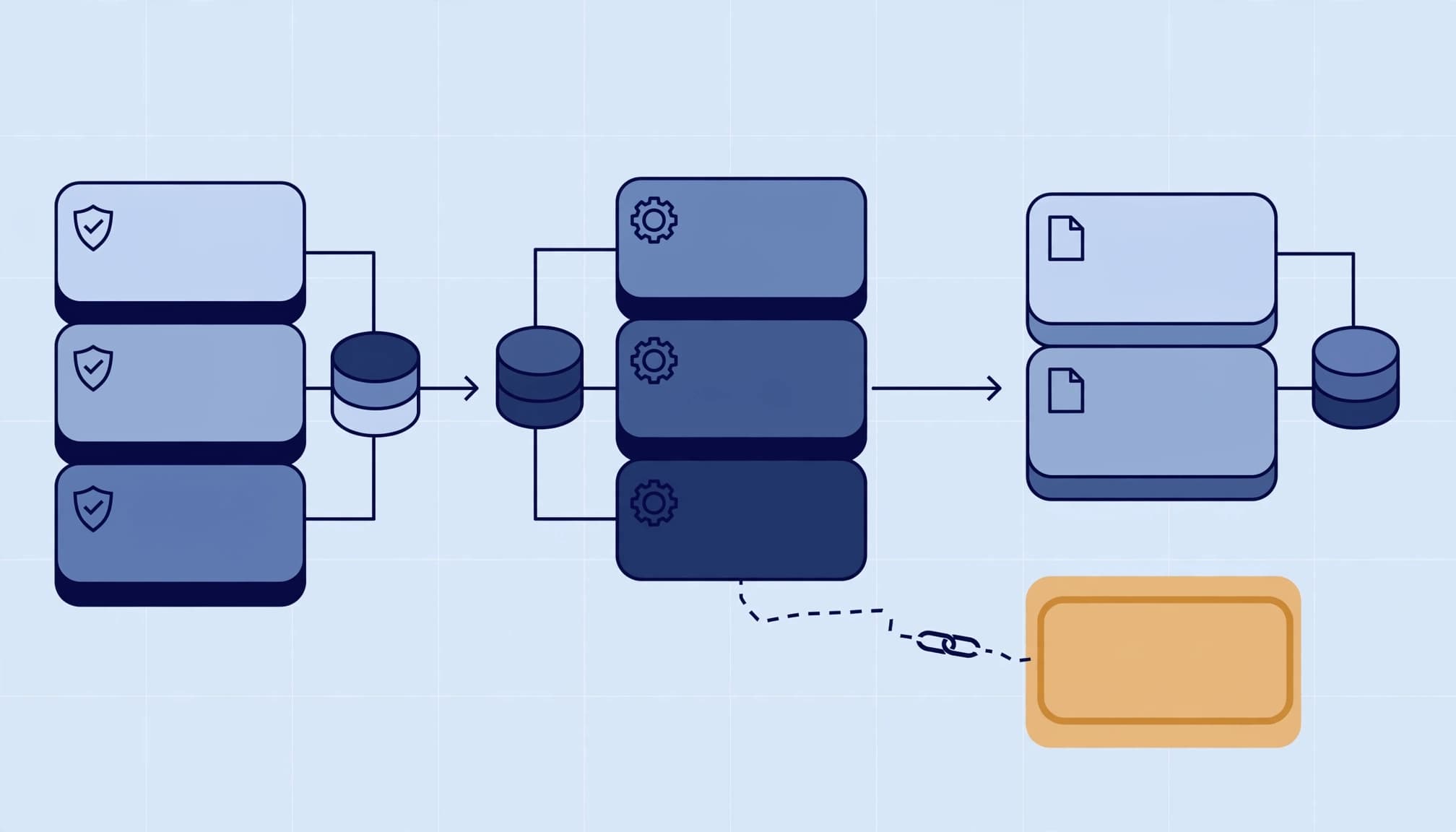
Assign an owner to Windows Autopilot device records before you automate their cleanup. I treat record ownership as an operational requirement because registration, management, and deployment reporting each describe a different part of the device lifecycle.
When nobody reconciles those records, your team cannot reliably distinguish a working laptop, a failed deployment, and hardware that left the business. Start by separating what each record proves, then assign responsibility for the next action.
Key takeaways
- Separate Autopilot registration, Intune management, and deployment history before approving changes.
- Preserve deployment evidence before the 28-day log cleanup removes it.
- Give every stale-device decision a named owner, an approved action, and a retained record.
Separate Windows Autopilot device records by purpose
A matching serial number does not make two records interchangeable. I reconcile the identifiers and lifecycle decision before changing either record.
Registration controls future provisioning
A classic Windows Autopilot registration associates hardware with the organization's provisioning service. It belongs in the review when equipment is purchased, reassigned, repaired, sold, or returned to a leasing company.
Windows Autopilot device preparation follows a different enrollment model and does not require classic Autopilot preregistration. This enrollment flow runs during the out-of-box experience (OOBE), when a user first sets up the device. Keep the workflows separate. Otherwise, your team can spend time searching for a registration the deployment method never required.
Management and reporting describe different events
The Intune device record describes the managed endpoint. The device preparation deployment report describes a provisioning attempt. Microsoft Entra ID maintains another device identity that also needs lifecycle ownership.
I match serial number, Intune device ID, and Microsoft Entra device ID where available. Then I compare last check-in, asset status, and the approved disposition. Registration alone grants no Microsoft 365 access; access decisions require their own review.
Read the device preparation deployment report correctly
Microsoft's device preparation reporting documentation, updated November 6, 2026, defines the report and its status values. I use it to investigate deployment outcomes, not as the authoritative asset inventory.
Open the report and identify the attempt
- Sign in to the Microsoft Intune admin center.
- Select Devices, then Monitor.
- Open Windows Autopilot device preparation deployments, the Autopilot deployments report, to reach the Device enrollment - Autopilot deployments report.
Use these fields together when identifying the deployment attempt.
| Field | What it tells you |
|---|---|
| Device name | The name associated with the device. |
| Enrollment date | When enrollment occurred. |
| Deployment status | In progress, Success, or Failed. |
| Phase | The deployment stage reported. |
| Serial number | The hardware identifier used for reconciliation. |
| Deployment time | How long deployment took. |
| UPN | The user principal name associated with enrollment. |
The device name can help distinguish deployment attempts, but it can change after a rebuild and isn't a stable hardware identifier. A serial number identifies hardware. Enrollment date and UPN help distinguish its deployment history. Compare deployment time across attempts to see how long each one took.
Read the phase before changing policy
Deployment status is In progress during deployment, then Success or Failed. Phase values are Policy installation, Script installation, and App installation.
Open the device deployment details pane and examine its Device, Apps, and Scripts sections. App statuses include Installed, In progress, Skipped, and Failed. Skipped can mean the app was selected in policy but not assigned to the device group, or that it does not apply.
For failures, use device deployment details to capture the affected item and diagnostic evidence before editing assignments or restarting deployment. Change the failing component, then test again.
Preserve evidence before the 28-day cleanup
Deployment logs are automatically cleaned up every 28 days. That process applies only to deployment records created after Microsoft introduced automatic cleanup. Older records remain outside its scope.
I separate that retention rule from the asset lifecycle. A deployment log disappearing says nothing about whether equipment was recovered, access was removed, or its Autopilot registration was released. Save the deployment outcome, relevant diagnostics, identifiers, and disposition ticket in your controlled evidence location.
Windows 365 needs particular attention. Devices reprovisioned after a failed deployment remain in the report and are not deleted from Intune, so administrators can retrieve diagnostic logs. Older Windows 365 deployment records outside automatic cleanup need manual removal.
Microsoft identifies Intune cleanup rules or manual deletion as ways to address stale records. Those actions have different effects. Select the action based on the record involved, rather than treating every old report row as the same problem.
Register hardware with the correct Partner Center identifiers
Registration errors create reconciliation work before a device reaches a user. I keep the partner upload format separate from the manual Intune hardware-hash workflow.

Use the identifier combinations for the upload route
Microsoft's Partner Center registration guidance describes these alternatives.
| Registration identifier option | Required identifying data |
|---|---|
| Hardware hash | Hardware hash. |
| Windows Product ID | Product Key ID, also called PKID. |
| Hardware tuple | Manufacturer name, serial number, and device model. |
A hardware hash comes from device-specific SMBIOS firmware data. Generate a fresh hardware hash from the device's SMBIOS firmware rather than editing a stale value. Windows Product ID identifies the product key record; it isn't the serial number. The tuple identifies hardware through three exact values.
The separate manual Intune registration workflow requires serial number and hardware hash. Don't reuse a Partner Center file on the assumption that both upload routes accept identical data.
Preserve the exact header and manufacturer values
The Partner Center CSV file must use this header:
Device Serial Number,Windows Product ID,Hardware Hash,Manufacturer name,Device model
Tuple registration is case-sensitive. Manufacturer name and device model must match the OEM-provided values exactly. Microsoft's documented Surface tuple uses Microsoft Corporation and Surface Laptop.
I keep the supplied registration data with the purchase or provisioning record. If somebody edits a manufacturer string for readability, the file stops being a faithful registration artifact. Preserve the source values and document corrections.
Keep the PowerShell scripts and output with the registration record when collecting a hash locally.
Clean up stale records without confusing the actions
Use inactivity to identify candidates, then use lifecycle evidence to approve action. I do not let a check-in threshold make a disposal decision.
Set cleanup thresholds by device class
Microsoft's Intune cleanup-rule documentation states that rules hide inactive device records. They do not wipe, retire, or delete endpoints, and they do not remove Microsoft Entra device identities.
Intune cleanup rules let you set an inactivity threshold from 30 to 270 days. I use 90 days as a starting point for standard user devices, then separate loaners, kiosks, and seasonal equipment.
Create the rule under Devices, Organize devices, Device cleanup rules, then Create. Record the threshold and exception owner. A device that checks in before its management certificate expires can reappear.
Approve deletion and deregistration separately
I use this sequence for records requiring lifecycle action:
- Reconcile the asset record with Intune, Microsoft Entra ID, Autopilot, and Microsoft Defender for Endpoint.
- Establish whether the device is active, recoverable, reassigned, lost, or leaving the organization.
- Approve any required retire, wipe, identity, registration, and asset-record actions.
- Record the result and unresolved exceptions in the disposition ticket.
For manual Intune deletion, select Devices, All devices, the device, then Delete. Microsoft's Intune Delete action guidance covers that operation. Intune deletion and Autopilot deregistration remain separate decisions.
My stale-device cleanup policy expands the threshold, exception, and downstream-action workflow.
Define the assessment and handoff before starting
I scope this work against Microsoft 365 E3, including Microsoft Intune Plan 1. The core management capabilities discussed here are generally available (GA); this review does not depend on preview features.
The assessment covers registration inventory, Intune enrollment, Microsoft Entra identities, last activity, deployment failures, group assignments, and asset disposition. I also review the handoff between purchasing, onboarding, offboarding, and disposal. That is where ownership usually needs a written boundary.
The client should receive a reconciled inventory, an approved-action register, an exception log, and an operating procedure. Each unresolved item needs a responsible person, a business reason, and a review date. The internal team must be able to operate the process after handoff.
Deployment success also needs a security check. I review BitLocker recovery-key availability, Microsoft Defender for Endpoint reporting, compliance assignments, and local administrator controls. The Windows device onboarding checklist connects provisioning to those device-hardening requirements.
This engagement is not worth commissioning when your team already reconciles these records, retains evidence, and closes exceptions through an established process. A monthly internal review is sufficient. Outside help should resolve an ownership or technical gap, not duplicate functioning work.
Frequently asked questions
Does the UPN identify the person responsible for the device?
The UPN identifies the account associated with enrollment. It does not establish who approves retention, retirement, or disposal. Shared devices and reassigned laptops make that distinction important. I require a named operational owner in the asset system or review register.
Does a successful deployment prove the device is secure?
Success records the deployment outcome. It does not establish that Defender telemetry remains healthy, encryption evidence is available, or every required application works. I require current endpoint security evidence and an application test before closing a deployment exception.
Make every record end in an owned decision
Every Windows Autopilot device record needs an accountable owner and a defined lifecycle action. Automating visibility cleanup is useful only when someone still owns the equipment, access, and disposition.
I want the review to end with approved actions and retained evidence. More settings will not compensate for an unassigned decision.
Book a free 30-minute call to scope a device-record readiness assessment.