
The Laptop Defender Has Never Seen
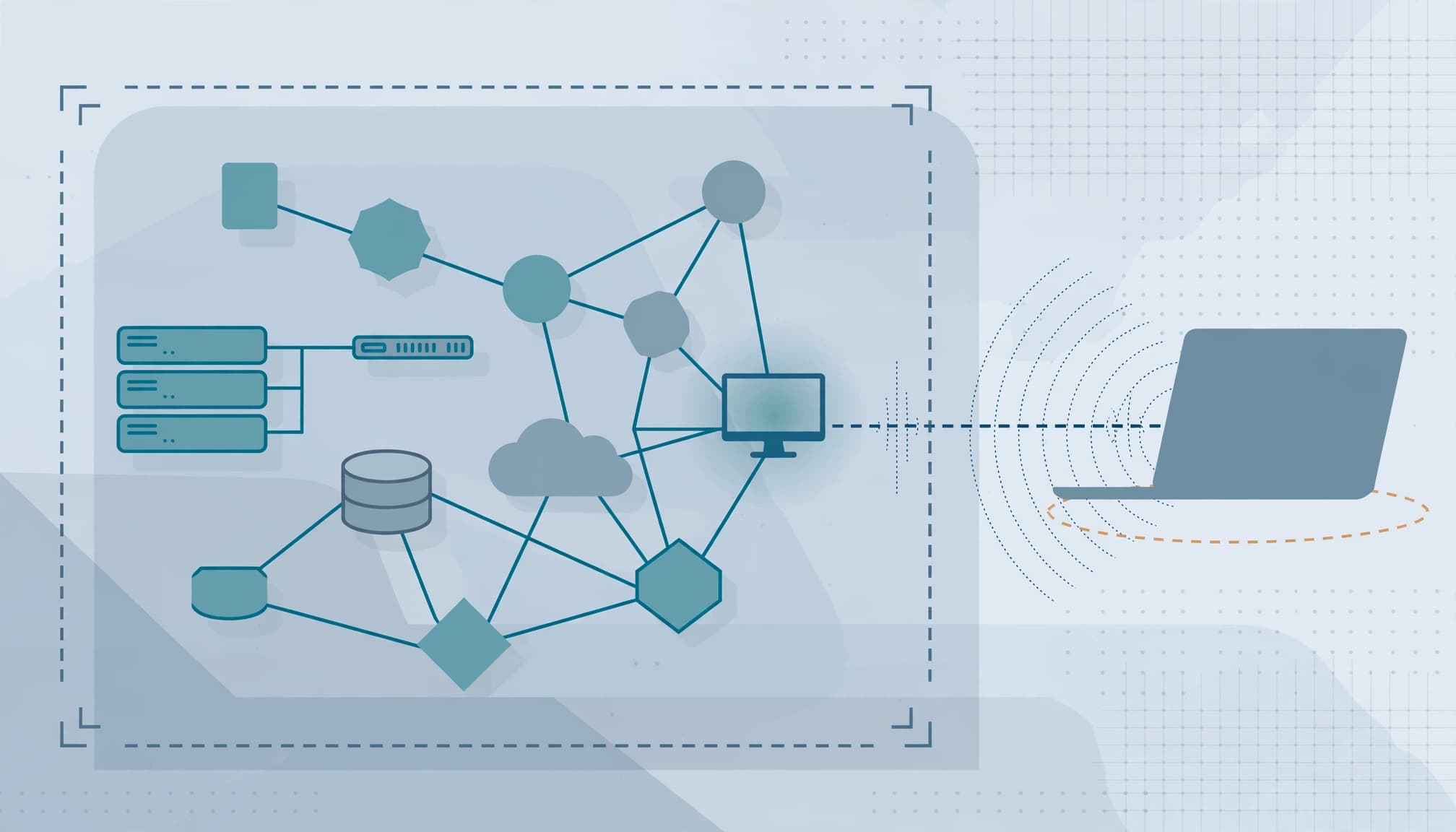
Use Microsoft Defender device discovery to find unmanaged devices, then assign someone to close each gap. A device appearing in Microsoft Entra ID or Intune does not prove that Defender for Endpoint receives its telemetry.
I treat verified coverage as the standard: a known owner, an onboarded sensor, and recent reporting. Start by separating devices Defender has discovered from devices it actually protects.
Key takeaways
- Standard discovery is the default and recommended mode, but sensitive networks need deliberate exclusions and scanner placement.
- Discovery identifies onboarding candidates; it does not install the Defender for Endpoint sensor.
- A useful assessment ends with reconciled inventory, assigned remediation, and evidence that missing devices now report.
Set the Microsoft Defender device discovery baseline
Compare E3 with E5 before configuring discovery
Microsoft's configuration guidance, updated October 23, 2026, lists Defender for Endpoint Plan 2 as a prerequisite. Microsoft 365 E3 includes Plan 1; Microsoft 365 E5 includes Plan 2. An E3 deployment needs the appropriate additional entitlement for this workflow.
The discovery capabilities discussed here are generally available (GA). I establish licensing, permissions, and scanner coverage before changing settings. An E5 assignment does not prove that the endpoint was onboarded.
Separate discovery from endpoint protection
Onboarded endpoints observe nearby unmanaged endpoints, network equipment, and IoT or OT devices without another discovery appliance. Those observations populate Assets > Devices in the Microsoft Defender portal.
Discovery-capable hosts include Windows 11, Windows 10 version 1809 or later, and Windows Server 2019, 2022, and 2025. Discovery compatibility does not extend an operating system's servicing lifecycle. Unsupported production systems still need a replacement or support decision.
Choose Standard discovery and control the probes
Microsoft's device discovery overview distinguishes the modes by how they collect information.
| Mode | Mechanism | Traffic initiated |
|---|---|---|
| Basic | Basic discovery passively observes network traffic using SenseNDR.exe |
None |
| Standard | Passive observation plus Microsoft-signed PowerShell probes | Up to 50 KB per attempt |
Use Standard unless a documented operational dependency requires passive-only discovery.
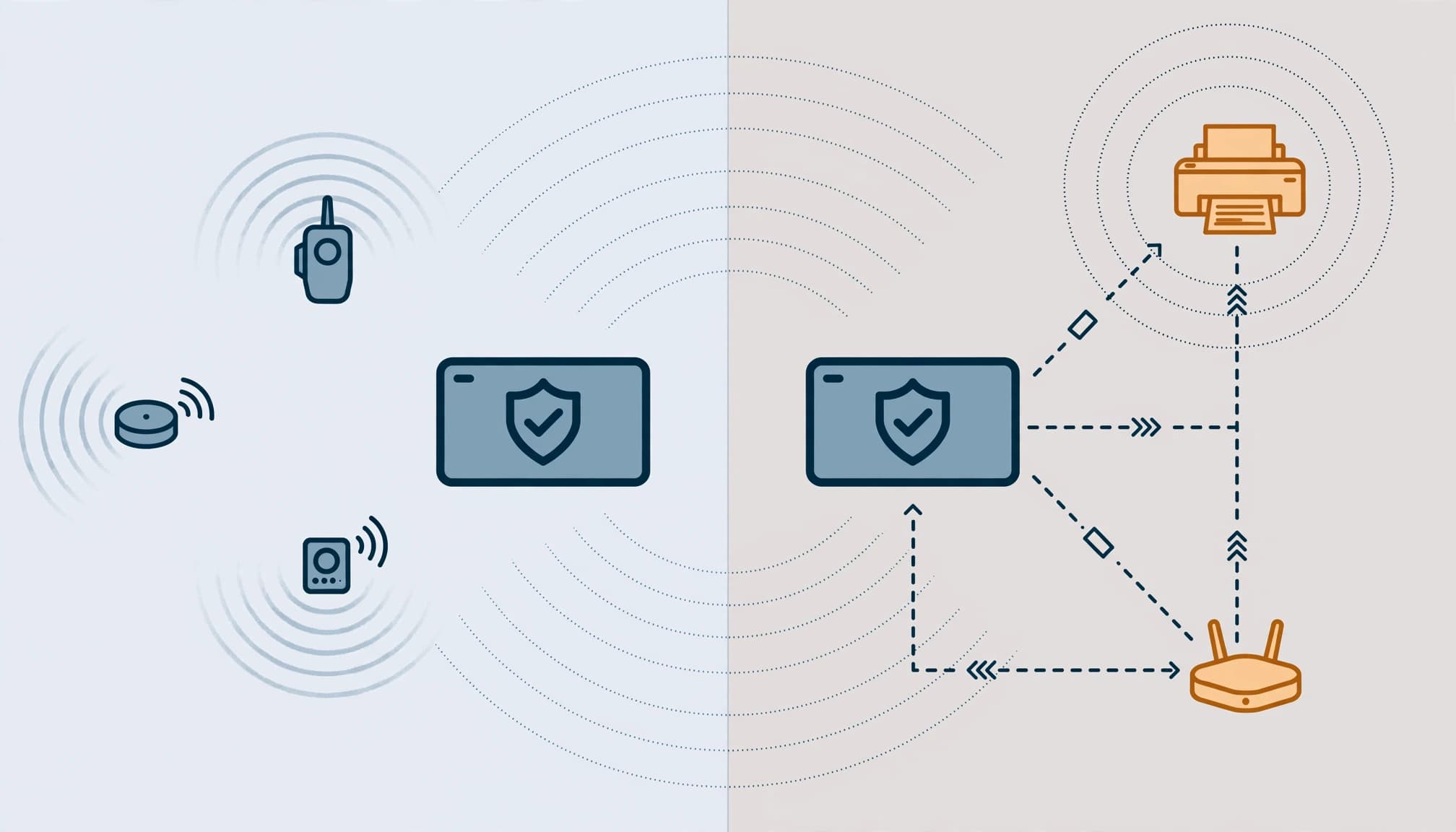
Bound active discovery
Standard probes unmanaged devices at most about once every three weeks, or when their characteristics change. Already onboarded devices are excluded from active probing.
Protocols include ARP, ICMP, SNMP, SSH, RDP, HTTP/HTTPS, and SMB/RPC. The 5 KB figure in Microsoft's 2020 launch announcement is historical; use the documented 50 KB ceiling for planning.
Account for signed scripts
Standard discovery runs Microsoft-signed PowerShell scripts from C:\ProgramData\Microsoft\Windows Defender Advanced Threat Protection\Downloads\.
If another security product flags these PowerShell scripts, apply its scoped allow-list process to that location. Microsoft's discovery troubleshooting guidance documents the path. I wouldn't create a general PowerShell exclusion to suppress expected discovery alerts.
Define monitored networks and exclusions
Establish the corporate network boundary
Defender correlates identifiers such as network name, default gateway, and DHCP server address to classify corporate networks. It monitors corporate networks by default. Private networks aren't monitored by default, so discovery doesn't add their devices unless monitoring is explicitly enabled.
Open System > Settings > Device discovery > Monitored networks. Review the classification against your actual sites and segments. A laptop connecting at home shouldn't classify a household connection as part of the corporate network.
I compare the device inventory against Active Directory, Intune, Entra ID, virtualization inventories, and cloud infrastructure records. Network observation alone can't account for an isolated or permanently remote device.
Restrict scanners and sensitive targets
Under Device discovery > Exclusions, exclude honeypots and sensitive equipment by IP address or subnet. Exclusions prevent active scans; passive observation and multicast discovery can still identify those devices.
Every exclusion needs an owner, a reason, and a review date. Restaurant POS support and kitchen technology environments deserve particular attention because vendor-managed equipment can have strict scanning restrictions.
Limit Standard discovery to selected onboarded devices through tags assigned in the portal or API. Registry-based tags aren't supported for this selection. Other onboarded devices continue Basic discovery.
Configure authenticated network scans separately
Authenticated network scans are agentless, read-only SNMPv2 or SNMPv3 assessments of network devices, including switches, routers, WLAN controllers, firewalls, and VPN gateways. They run through a designated onboarded Windows scanning device. Prefer SNMPv3 when the equipment supports it.
Scanner support starts at Windows 10 version 1903 and Windows Server version 1903. These scanner requirements are separate from ordinary discovery-host support and operating system servicing.
I configure the work in this order:
- Select an onboarded scanning device with connectivity to the targets' management interfaces. Assign an administrator with Manage security settings in Defender permission.
- Enable read-only SNMP on the targets and permit the required traffic through intervening firewalls. Keep write access out of the credential scope.
- Open System > Settings > Device discovery > Authenticated scans, select Add new scan, and choose Network device authenticated scan.
- Select the scanning device, target ranges, targets to omit, and SNMP credentials. Run the optional test scan, which supports up to 1,024 addresses.
- Review the test results before enabling periodic scans. The default interval is four hours.
A tenant supports up to 40 scanners, with 1,500 successful IP addresses per scanning device. Size deployment against successful targets, not the apparent size of a subnet. These scope limits narrow the scan, but they don't increase scanner capacity.
Place scanners where routing and management access permit assessment. Adding another scanner behind the same blocked firewall rule accomplishes very little.
Troubleshoot the laptop that stays missing
Prove visibility before changing policy
Start troubleshooting unmanaged devices with the missing device's network path. Identify which onboarded endpoint can observe its network traffic, whether that endpoint is healthy, and whether the network is monitored. Then review Standard discovery selection, configured omit rules, segmentation, and interference from other security tools.
If no discovery-capable endpoint sees the device's traffic, waiting longer doesn't fix coverage. Put an appropriate scanner on the segment or onboard the laptop directly through your management platform.
Don't use the Devices to onboard tile as the complete inventory. Its stable-device filtering can require repeated observations across three days. A transient discovered device can appear in inventory without becoming an onboarding recommendation.
Read the onboarding status correctly
Microsoft's device assessment guidance separates four outcomes: Onboarded, Can be onboarded, Unsupported, and Insufficient Info.
Can be onboarded identifies an eligible device requiring action. Check the relevant security recommendations for remediation guidance. Unsupported requires another protection decision, such as segmentation, replacement, or appropriate specialist monitoring.
For Insufficient Info, enable Standard discovery on more suitable onboarded devices so Defender can collect richer attributes. Where active probing is restricted, basic discovery's passive observations may not provide enough detail to resolve the result, especially when connections are short or responses are limited. Increasing scanner coverage helps only when those scanners can reach the device.
Turn discovery into verified onboarding
Open Vulnerability management > Recommendations and review the security recommendations under Onboard devices for eligible discovered devices. Assign remediation to the endpoint owner. A recommendation with no owner is another inventory report.
For Advanced hunting, use DeviceInfo | summarize arg_max(Timestamp, *) by DeviceId | where OnboardingStatus == "Can be onboarded". This selects the latest record per device before filtering. The results can support custom detection rules with a defined response owner.
If you already use Intune, deploy onboarding through its existing management flow. My Defender onboarding through Intune workflow separates policy assignment from reporting validation. Pilot the policy, resolve conflicts, and expand only after telemetry is stable.
Then confirm Onboarded status, recent last-seen data, and sensor health in Assets > Devices. On sampled Windows endpoints, confirm that the Sense service is running and telemetry reaches Defender. A healthy antivirus result alone doesn't prove Defender for Endpoint onboarding.
Connect verified coverage to device hardening, patching, and alert ownership. Defender supplies device-risk signals, Intune evaluates compliance, and Microsoft Entra Conditional Access enforces the resulting access requirements.
Scope outside help around deliverables
I scope discovery work around three outputs: a reconciled coverage report, approved discovery settings, and a remediation register with owners and completion evidence. The assessment includes licensing, sensor health, monitored networks, exclusions, scanner placement, and onboarding failures.
The same work should identify unsupported equipment and dependencies across cloud infrastructure and legacy data center systems. Those findings belong in infrastructure optimization planning, with a support or retirement decision attached.
Our cybersecurity risk management services can address the resulting endpoint and configuration gaps alongside your team. The handoff should show what changed, what remains open, and who operates it.
A separate engagement is not worth it when your fleet is already reconciled, telemetry is healthy, and your team can resolve the remaining exceptions. Keep that work internal.
Frequently asked questions
Should device discovery stay enabled?
Yes. Microsoft recommends keeping it enabled. Basic mode provides a passive option when active scanning is inappropriate. Device discovery can be disabled under Settings > Endpoints > General > Advanced features, but disabling it removes visibility into unmanaged assets rather than resolving the reason they exist.
Does discovery include IoT vulnerability assessment?
Discovery can identify IoT equipment, but identification and vulnerability assessment are different capabilities. Vulnerability assessment for discovered enterprise IoT devices requires Enterprise IoT Security entitlement through Microsoft 365 E5 or a standalone Enterprise IoT license. Document specialized OT monitoring separately.
Make coverage an owned operational control
The useful result is verified protection, supported by recent telemetry and a named owner. Keep discovery running, resolve onboarding failures, and review exceptions against the actual business network.
More scans do not compensate for unassigned remediation. The necessary work is accounting for each device and proving the approved protection reached it.
Book a free 30-minute call to scope a device-discovery readiness review.