
E7 Sensitivity Labels: An E5 Operator's Deployment Plan
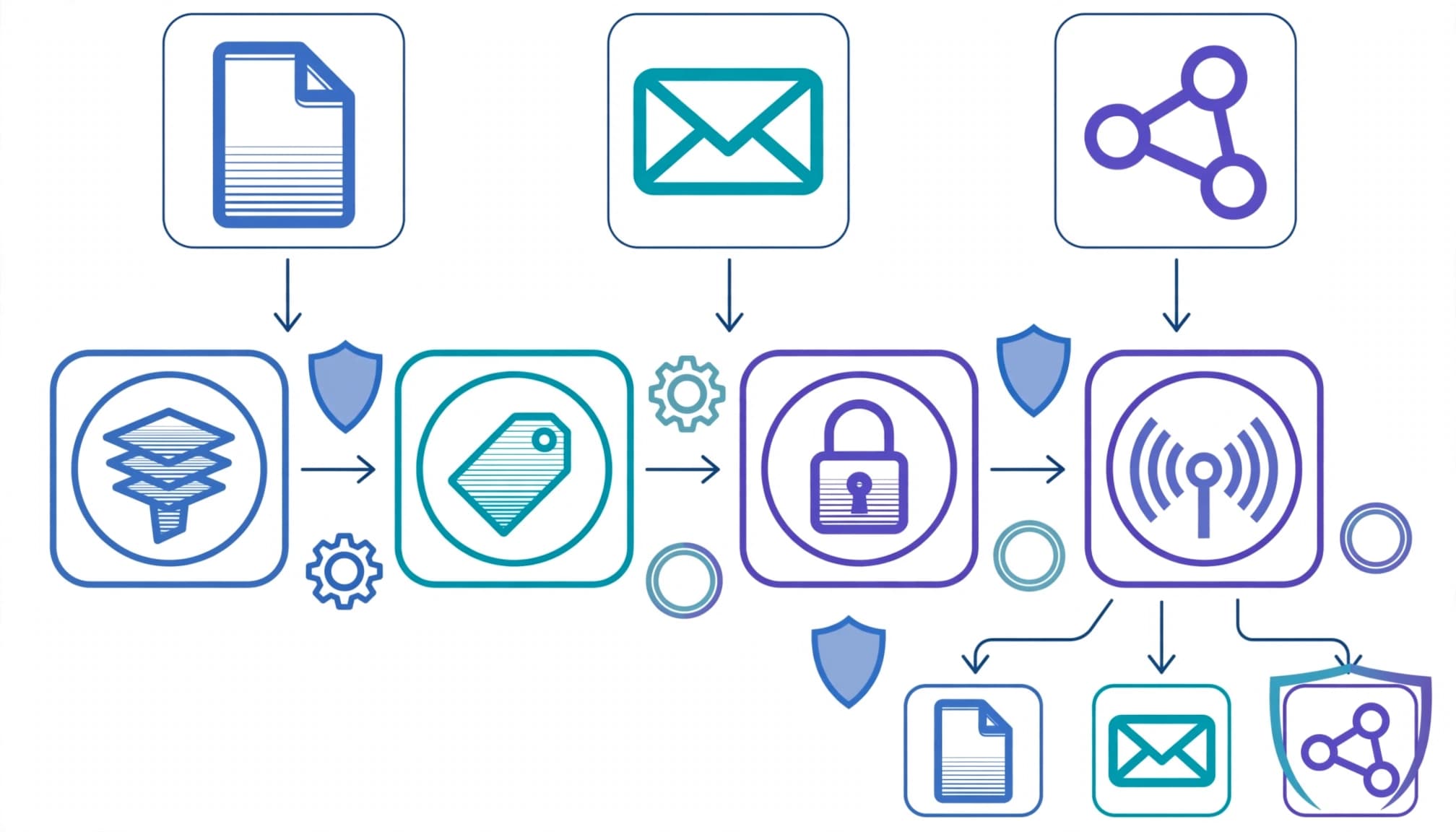
Keep your Microsoft Purview label taxonomy when moving from E5 to E7. E7 sensitivity labels use the existing Information Protection framework, so the deployment work is policy validation, permissions testing, and controlled publication.
I would start with data classification that identifies sensitive data your business cannot afford to expose, then test how protection affects collaboration. A licensing change does not repair excessive SharePoint permissions or an encryption policy nobody has tested.
Key takeaways
- E5 already provides the core sensitivity-label capabilities required for this deployment.
- Creating a label does not publish it; users receive labels through a label policy.
- Enforce encryption only after internal access, external collaboration, and recovery procedures pass testing.
1. Establish the E5 licensing baseline
Separate the licensing decision from the protection project. Check Microsoft's March 9, 2026 announcement against current licensing documentation before relying on its E7 package details or availability date.
An E5 baseline includes manual labeling, automatic labeling, and advanced information protection. Adding standalone Copilot changes the bundle comparison. Neither baseline requires a new label taxonomy.
Agent 365 is a governance and control plane for agents, not an agent runtime. Keep that distinction clear in architecture and procurement discussions.
The core file, email, and container-label controls covered here are generally available. Keep preview features outside production acceptance criteria.
I wouldn't recommend E7 solely to obtain sensitivity labels. The value case must account for the additional capabilities your organization will actually deploy.
2. Create labels with deliberate scope
In the compliance portal, open Microsoft Purview portal > Solutions > Information Protection > Sensitivity labels, then select Create a label. Microsoft's label configuration guidance covers creation and publication.
Build the taxonomy before protection
Enter Name, Display name, and Description for users. Users see the display name and description, so explain the handling requirement rather than repeating the label name.
Keep the taxonomy short. Public, Internal, Confidential, and Highly Confidential provide a workable starting structure, but every level needs an approved business meaning.
Order labels from least restrictive at the top to most restrictive at the bottom. Label priority affects automatic labeling and downgrade behavior. A parent containing sublabels has no protection settings; configure applicable controls on the selectable sublabel. Never choose the parent as the default label.
Separate content from containers
Choose only the required scopes: files, email, meetings, groups and sites, or schematized data assets. Label scope determines which workloads a label applies to; a site label doesn't automatically label every document inside that site.
For Microsoft Teams, Microsoft 365 groups, and SharePoint sites, enable sensitivity-label support in Microsoft Entra ID. Synchronize labels using Execute-AzureAdLabelSync in Security & Compliance PowerShell.
Container settings provide Public, Private, or None privacy choices, external-sharing controls, and access controls such as Conditional Access settings for labeled SharePoint sites. Document which protection settings are configured on the label and which remain tenant controls.
3. Configure encryption and content markings
I separate classification from enforcement during the pilot. Otherwise, a naming dispute becomes an access outage.
Set permissions and access duration
Sensitivity labels can encrypt documents and email. Configure administrator-defined permissions when access must be predictable. User-defined permissions leave recipient selection with the sender or document owner.
These settings also support removing protection and Double Key Encryption. Use Double Key Encryption only when the additional key dependency and reduced collaboration compatibility match a documented requirement.
Access expiry can use a specific date, effective at midnight in the local time zone, or days after labeling. Content expiry ends the user's access; it doesn't delete the file. Offline access offers Always, Never, or Only for a number of days. After that interval, users must authenticate again.
Service-side auto-labeling of encrypted SharePoint and OneDrive files requires Assign permissions now and User access to content expires: Never. Don't reuse an expiring label for that workflow. Test the protection settings with a sample user before publication.
Keep markings short and predictable
Keep watermarks on documents. Use a header and footer for email and meeting-invitation marking requirements rather than relying on document-style watermark behavior. Place a watermark where it remains readable on screen and in print.
Budget 255 characters for watermarks and 1,024 for headers and footers. Excel headers and footers have a 255-character limit.
Custom marking text is case sensitive and appears as configured. Review each content marking in its actual output, including capitalization and line length. Test the watermark in print. A content marking communicates classification; encryption controls access.
4. Separate automatic classification workloads
Automatic labeling needs its own acceptance criteria. A detector that finds sensitive information correctly can still assign the wrong handling requirement.
Test Office and service-side detection separately
Use sensitive info types for recognizable content such as person names, addresses, and bank account numbers. Trainable classifiers suit content whose meaning cannot be captured reliably through those patterns.
Test detection in Office apps separately from service-side policies for stored files and email, as Microsoft's automatic sensitivity-labeling guidance explains.
I would run service-side policies in simulation before enforcement. Review matches with the data owner, record false positives, and approve the intended label.
For separately scoped CUI, Purview auto-labeling for CUI requires its own handling decisions.
Keep Data Map outside the Office pilot
Schematized-data labeling is a separate Microsoft Purview Data Map workstream. Its automatic-labeling criteria accept sensitive info types, not trainable classifiers.
Supported sources include SQL Server, Azure SQL Database, Azure Synapse Analytics, Azure Cosmos DB for NoSQL, Azure Database for MySQL, Azure Database for PostgreSQL, and Azure Data Explorer.
Do not assume an Office labeling result proves database coverage. Assign the data-platform owner responsibility for source registration, scanning, and classification acceptance.
5. Publish policies and prove the pilot
Publish label choices to users through a scoped label policy before expecting them to appear. The label defines classification and protection; the policy defines recipients, defaults, mandatory labeling, and downgrade justification.
Start with an IT-only label policy, then add a representative departmental pilot with finance, operations, external collaborators, and mobile users. Your own team should encounter the friction first.
Plan for a one-to-24-hour availability window across workloads. Microsoft's guidance gives new native Office labels up to four hours, web labels up to one hour after browser refresh, and changes up to 24 hours across services.
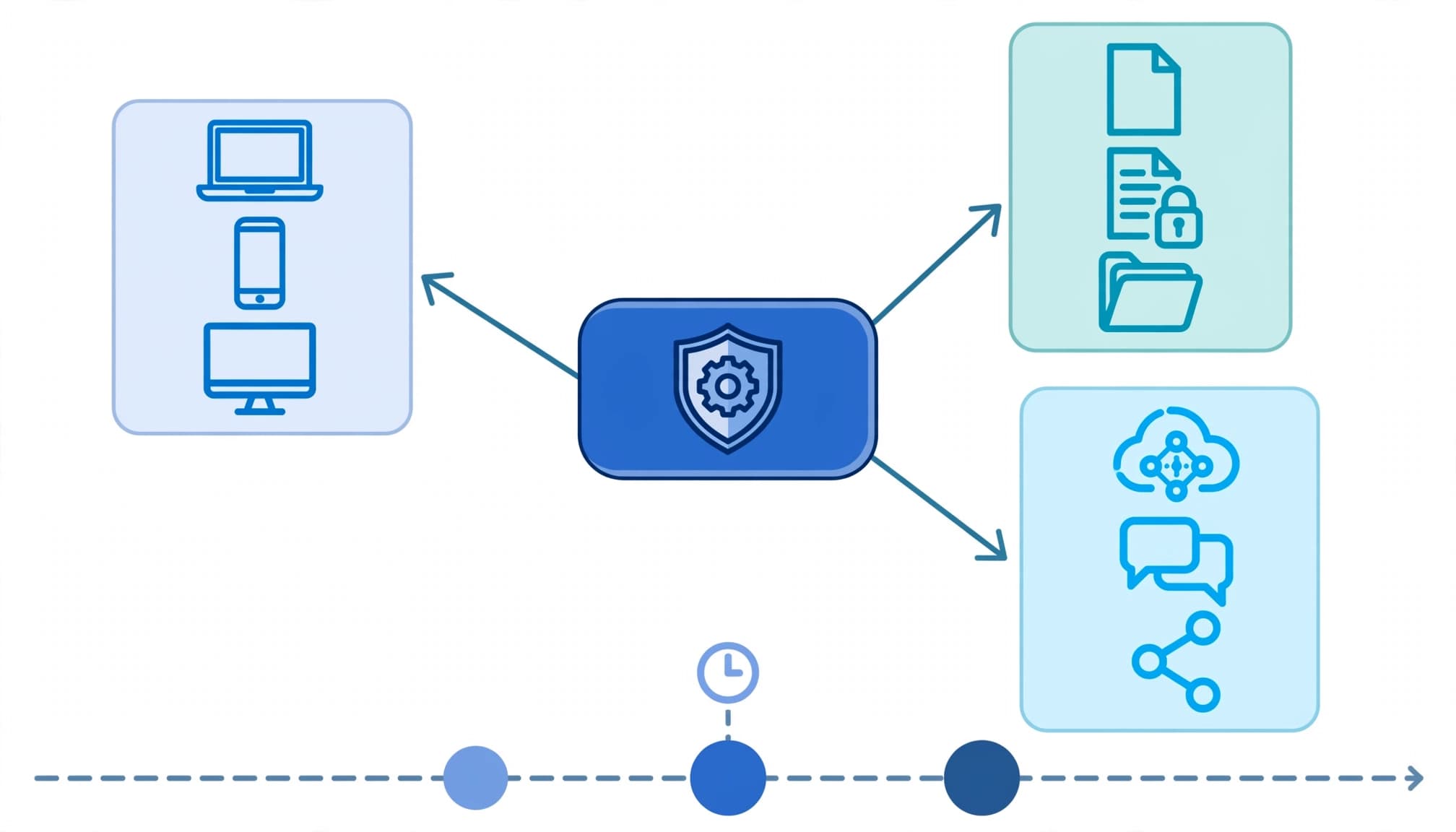
Test creation, opening, saving, coauthoring, external access, offline access, and authorized label removal. Include Word, Excel, PowerPoint, Outlook, SharePoint, OneDrive, and Teams where scoped.
I require a named owner for every failed workflow. Each exception needs a business reason, compensating control, and expiration date. Expand publication only after access failures are fixed or accepted by the accountable owner.
6. Troubleshoot failures before changing protection
A missing label and an encrypted file that will not open are different incidents. Start with the failure mechanism.
Diagnose propagation, clients, and connectivity
For missing labels, review policy scope, group membership, assigned licenses, and overlapping label policies. Allow propagation time before rebuilding anything.
For opening or saving delays, compare the same file in supported desktop and web applications. Microsoft's Office labeling documentation identifies application-specific behavior.
Automatic classification combined with encryption can increase processing and authentication work. Investigate Office build, proxy inspection, DNS filtering, and connectivity to rights-management services when files stall at Information Rights Management configuration.
Keep endpoint security and device hardening in the investigation. Do not remove protection across the tenant to resolve one workstation's problem.
Retire labels without stranding content
Unpublishing a label stops offering it through that policy. It does not remove existing labels or decrypt existing files.
Microsoft's sensitivity-label documentation also states that deleting a label does not automatically remove its protection from existing content.
Remove the label from every publishing policy before deletion. Preserve authorized recovery access and relabel affected content first. Container-setting removal follows a different path; SharePoint changes can take 48 to 72 hours.
Define the assessment and handoff
Scope outside help around evidence and deliverables. I would assess existing labels, publishing policies, encryption rights, external sharing, Office versions, licensing assignments, and recovery access.
The client should receive an approved taxonomy, a label-and-policy configuration record, pilot results, an exception register, and an operating runbook. The handoff must identify who approves new labels, who investigates access failures, and who reviews exceptions.
Our Microsoft 365 migration and licensing services can scope that work alongside tenant readiness and licensing review. If an Office 365 migration is running concurrently, coordinate policy publication with cutover and user communications.
This engagement is not worth expanding when your E5 configuration already passes those tests and E7 adds no required control. Resolve individual defects through normal cloud management. For small business IT teams, a documented configuration can be more useful than another broad technology-consulting project.
Frequently asked questions
Can labels apply protection without user action?
Yes. Supported automatic-labeling conditions can assign a label that applies encryption and content markings without manual selection. The available behavior depends on the workload and application.
Keep detection, labeling, and encryption tests separate. A successful classification match does not prove that an external recipient can open the protected file.
How can users remove a sensitivity label?
Authorized users can change or remove a label in supported Office applications when policy permits it. Mandatory labeling can prevent leaving content unlabeled, and downgrade justification can require a reason.
Removing a label that applied encryption also removes it when the user has the necessary rights. Deleting its publishing policy is not a substitute.
Keep the rollout accountable
E7 sensitivity labels should preserve working classification and close documented protection gaps. Every enforced setting needs evidence that authorized work still functions and unauthorized access fails.
Keep the taxonomy small, the exceptions owned, and the handoff usable. Book a free 30-minute call to scope a labeling-readiness assessment or licensing review.