
E7 Mobile Access on BYOD: An Intune Remediation Guide
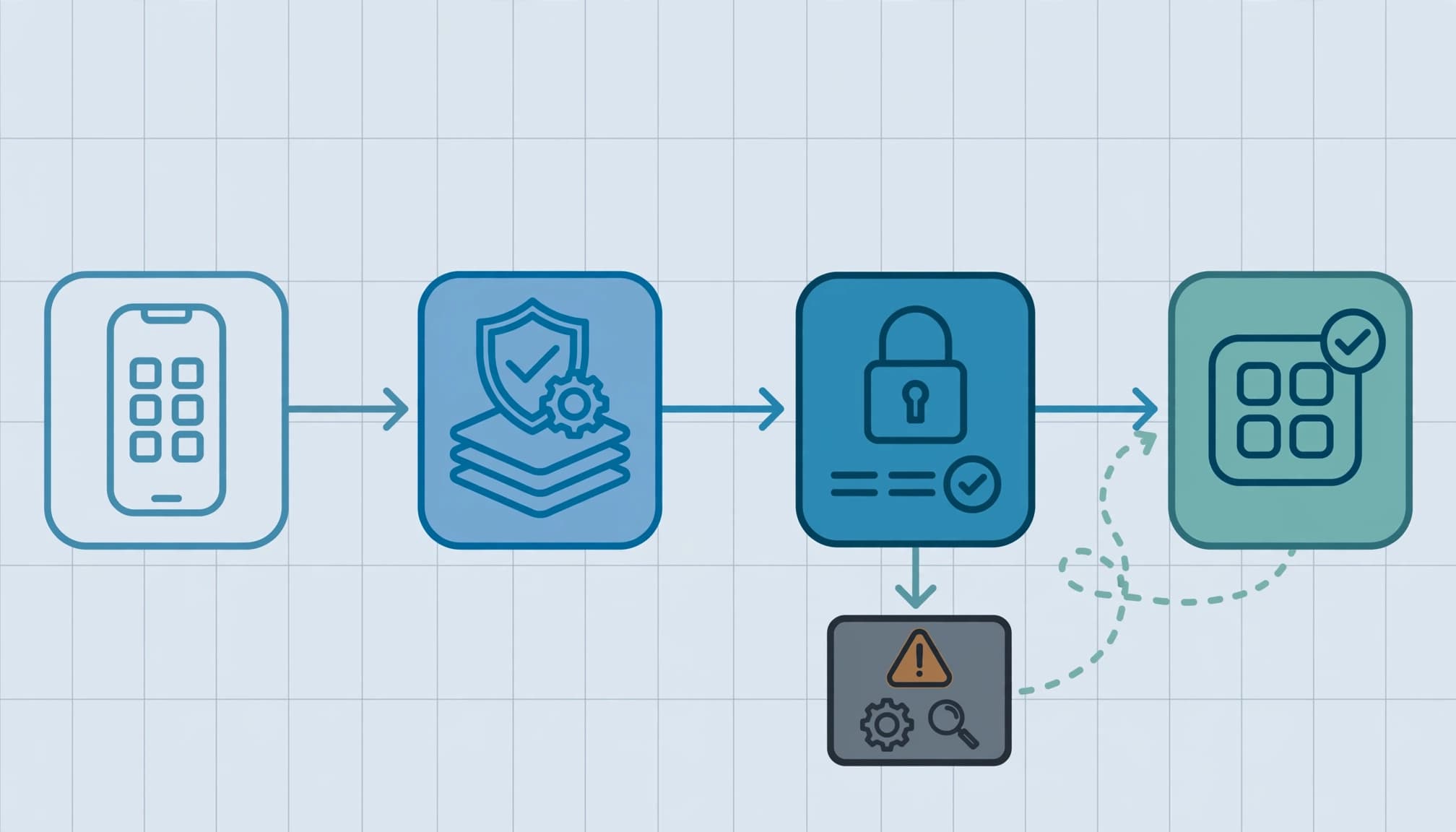
Treat failed E7 mobile access as an access-control problem before changing the subscription. A personal phone can have the right license and still fail because Intune targeting, app registration, and Conditional Access disagree.
Here, E7 means Microsoft 365 E7. I start with the failed sign-in and trace the decision back to its policy, using Microsoft 365 E3 as the licensing baseline. Establish the intended BYOD access model before touching enforcement.
Key takeaways
- App protection can secure supported work apps without Intune device enrollment, but registration and broker requirements still apply.
- Requiring a compliant device blocks an unenrolled phone that cannot supply that compliance signal, even when its apps have protection.
- A successful remediation includes evidence of permitted access, blocked alternatives, tested data restrictions, and a documented rollback.
The subscription establishes entitlement. The policy decides whether the session gets through.
Establish the E3 baseline before discussing E7
Separate licensing from policy enforcement. Microsoft 365 E3 includes Microsoft Intune Plan 1 and Microsoft Entra ID P1, the baseline for standard app protection and Conditional Access. Office 365 E3 alone does not provide that same entitlement set.
I review the affected user's assigned products and enabled service plans in the Microsoft 365 admin center under Users > Active users > Licenses and apps. A purchased subscription does not establish that the user has its services enabled.
Microsoft's May 1, 2026 announcement made Agent 365 generally available and identified it as included in E7. Agent 365 is a governance and control plane, not an agent runtime or a replacement for Intune enforcement. The remediation here uses generally available Intune and Microsoft Entra capabilities.
When a subscription change exposes assignment gaps, I keep Microsoft 365 migration and licensing services focused on entitlements, tenant readiness, and the access model. Adding another bundle does not repair conflicting policies.
Choose app protection or device compliance deliberately
Use app protection for an approved unenrolled workflow
For lower-risk BYOD, I use Intune application protection policies to contain work data in supported applications. Outlook, Teams, OneDrive, and Edge are common targets. The policy follows the corporate identity inside each application.
As of November 2026, Microsoft's app-based Conditional Access guidance covers both enrolled devices and employee-owned devices without enrollment. That does not remove device-registration requirements.
I assign separate Android and iOS/iPadOS policies to user groups. The documented boundary for Intune app protection on BYOD matters: application-level controls do not establish whole-device compliance.
Require enrollment when the business needs device assurance
If the workflow requires device-wide configuration, compliance reporting, or stronger endpoint security, choose an enrolled model. Android Enterprise personally owned work profiles and Apple User Enrollment address different platform requirements.
Keep the policy types separate. Configuration profiles apply settings; compliance policies evaluate requirements; Conditional Access enforces the resulting access decision.
An unmanaged phone cannot satisfy a requirement merely because Outlook has an application PIN. If the business requires a compliant device, enrollment and device hardening become prerequisites. Don't weaken that rule to accommodate an unsupported workflow.
Reconstruct the failed sign-in before changing settings
Find the policy that actually denied access
Open Sign-in logs in the Microsoft Entra admin center and search for the failed event. Capture the user's principal name, UTC timestamp, application, target resource, correlation ID, and failure details.
Then inspect the Conditional Access tab and device information. Record every applicable policy, its result, and its grant controls. Search by correlation ID to connect the event with related records. A generic access-denied screen doesn't identify which requirement failed.
Review the resource as well as the visible application. Teams workflows can involve SharePoint Online or Exchange Online. Fixing the policy for the front-end application alone can leave the dependent resource blocked.
Correlate the session with Intune's app status
In the Microsoft Intune admin center, open Apps > Monitor > App protection status. Then use Troubleshooting + support > Troubleshoot, select the user, and inspect the assigned protection policies.
Compare the corporate account, application, operating system, management classification, and policy status. "Not checked in" requires investigation of targeting and client registration before another policy is created.
For unresolved client behavior, Microsoft's app protection log guidance describes diagnostic collection. Edge's about:intunehelp page exposes Intune application information and diagnostic options. Preserve those records with the failed sign-in.

Repair Intune targeting and client prerequisites
Correct the assignment before rebuilding the policy
I review four dependencies first: the user's Intune entitlement, targeted user-group membership, the protected application selection, and the corporate account used inside that client. Device-group targeting does not substitute for user targeting in this unenrolled BYOD design.
Inspect exclusions and assignment filters next. A policy intended for unmanaged devices can miss a phone that Intune classifies differently. The intended ownership model and the reported management state must agree.
Microsoft's app protection deployment troubleshooting follows this dependency-based approach. Recreating a policy before resolving its assignment produces another policy with the same failure.
Repair registration and broker dependencies
For this application-based Conditional Access design, iOS/iPadOS uses Microsoft Authenticator as the broker; Android uses Microsoft Intune Company Portal. Installing a broker doesn't, by itself, mean the device is enrolled in Intune management.
Complete registration using the intended work identity, then reopen the protected client and reproduce the sign-in. Record the installed Outlook version and operating-system version, then confirm both meet the policy's supported requirements. Update a component only when its recorded version falls below those requirements.
Apple Mail and the default Android email client don't become Intune-protected applications because the user has E7. If the approved workflow requires Outlook, move the account into Outlook. Don't create an exclusion to preserve an unsupported client.
Correct Conditional Access without opening a bypass
Build the grant requirement around the approved model. For supported unenrolled mobile applications, use Require app protection policy and maintain the appropriate MFA requirement. Microsoft's mobile app grant-control guidance documents the registration dependency.
Read the grant logic literally. Require all the selected controls requires every selected control. Requiring both application protection and device compliance will still reject an unenrolled device that can't satisfy compliance.
Applicable Conditional Access policies also accumulate. An exclusion from one policy doesn't cancel another policy's compliant-device requirement. I review the complete policy set before changing any individual rule.
Test changes in Report-only, then enforce through an IT pilot and a representative business group. Include Android, iOS/iPadOS, new installations, existing accounts, and the dependent resources identified in the logs. Report-only evaluates the access rule; it doesn't prove that application-level data restrictions work.
Keep emergency access accounts excluded from relevant enforcement policies and monitored. Every business exception needs an owner, a reason, an expiration date, and compensating controls. A tenant-wide bypass trades a visible support incident for data leakage and audit findings.
Define the remediation deliverables and stopping point
I scope the work around observable failures: licensing assignments, policy targeting, registration, Conditional Access interactions, and content movement. The client should receive a policy matrix, approved changes, before-and-after sign-in evidence, test results, and a rollback procedure.
Test data protection separately from access. Under Data protection, review Send org data to other applications and Save copies of org data. Define which organizational data can move and which save locations are permitted. Have the operator download a test work file and verify its download behavior against those restrictions. Test personal-application transfer limits, the configured offline grace period, and offboarding; repeat a relevant access check offline.
The handoff must identify who owns exceptions, who reviews failures, and how support distinguishes application protection from device compliance. Document what selective wipe can remove from a personally owned device and what remains personal, so the privacy boundary is clear. That's ongoing cloud management your team can operate without the project engineer.
A broad engagement isn't worth it when one user lacks a license or runs an unsupported OS. Resolve that incident directly. Outside help becomes useful when overlapping policies, undocumented exceptions, and repeated downtime prevent the team from explaining its access decisions. Keep unrelated infrastructure optimization outside the scope unless the evidence points there.
Frequently asked questions about E7 mobile access
Can an app PIN replace Microsoft Entra multifactor authentication?
No. An Intune application PIN controls access to protected application data on the phone. Microsoft Entra multifactor authentication evaluates authentication to the service. I treat them as separate requirements because they protect different points in the workflow.
Does an app selective wipe erase the personal phone?
An Intune application selective wipe targets organizational data in supported managed applications rather than factory-resetting the phone. I distinguish that action from a device wipe in the runbook and test it before relying on it for employee offboarding.
Can a custom mobile app participate in app protection?
The application needs supported Intune SDK integration or an eligible application-wrapping implementation. Installing a custom application through a company distribution channel doesn't add those capabilities. If the application can't enforce the required controls, change the access model or keep that workflow off unmanaged phones.
Restore access against a documented standard
Approve mobile access only when the intended session works and the prohibited alternatives remain blocked. Keep the evidence with the change record so your team can explain the decision later.
The necessary work is a supportable access boundary, tested against the clients people actually use.
Book a free 30-minute call to scope a BYOD readiness assessment or licensing review.